

Before you begin
- You need the Administrator or Salesperson role, or the MeasureTool plan.
- The client can already exist in PlanOps. If not, you can create the client while you create the quote.
Steps
- In the menu, click Quotes, then click New quote.
- If your company has more than one quote template, pick the right one from the Template list.
- In the Client field, type the client's name and select it from the list. If the client doesn't exist yet, click New, fill in the client's file, then click Save.
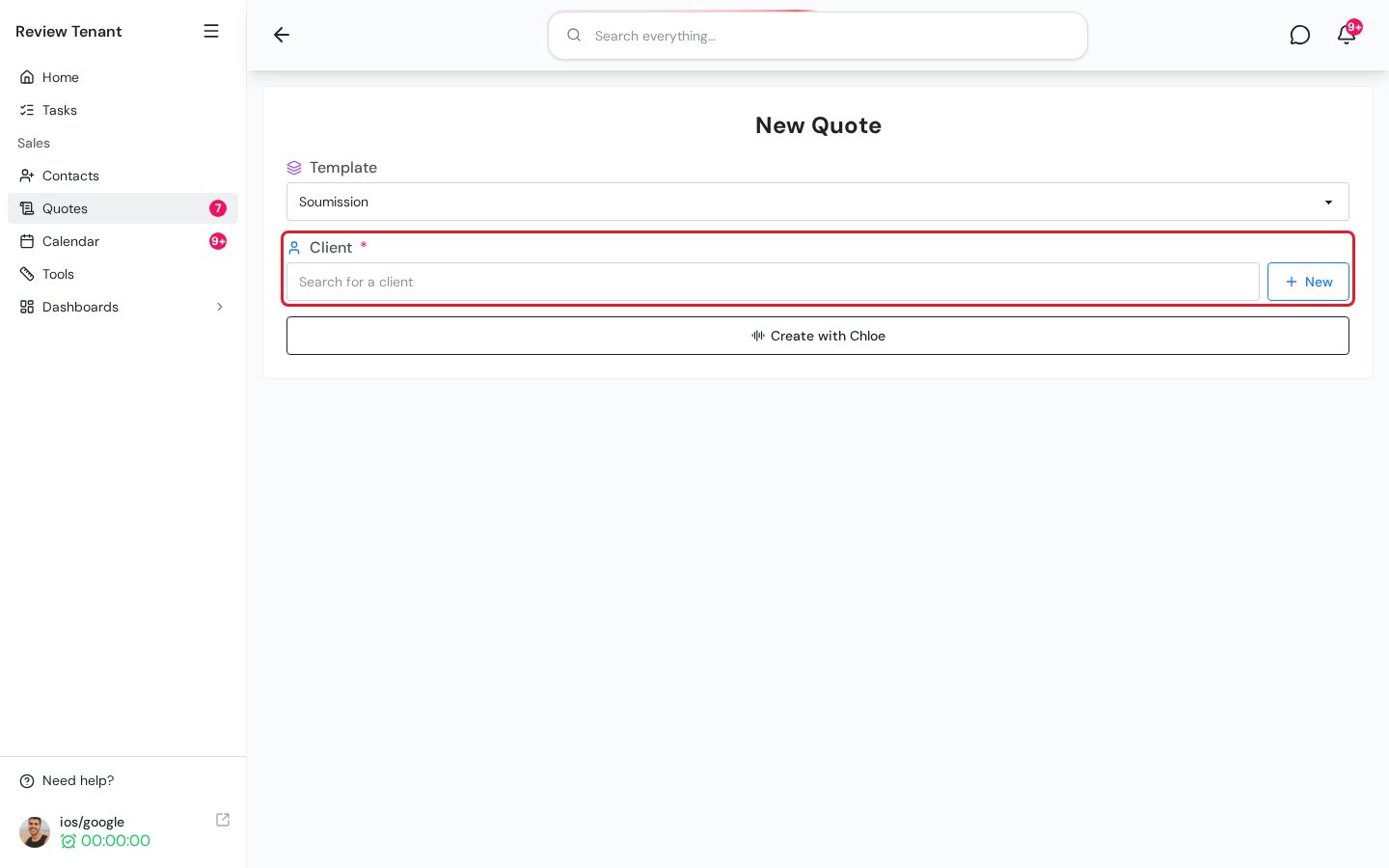
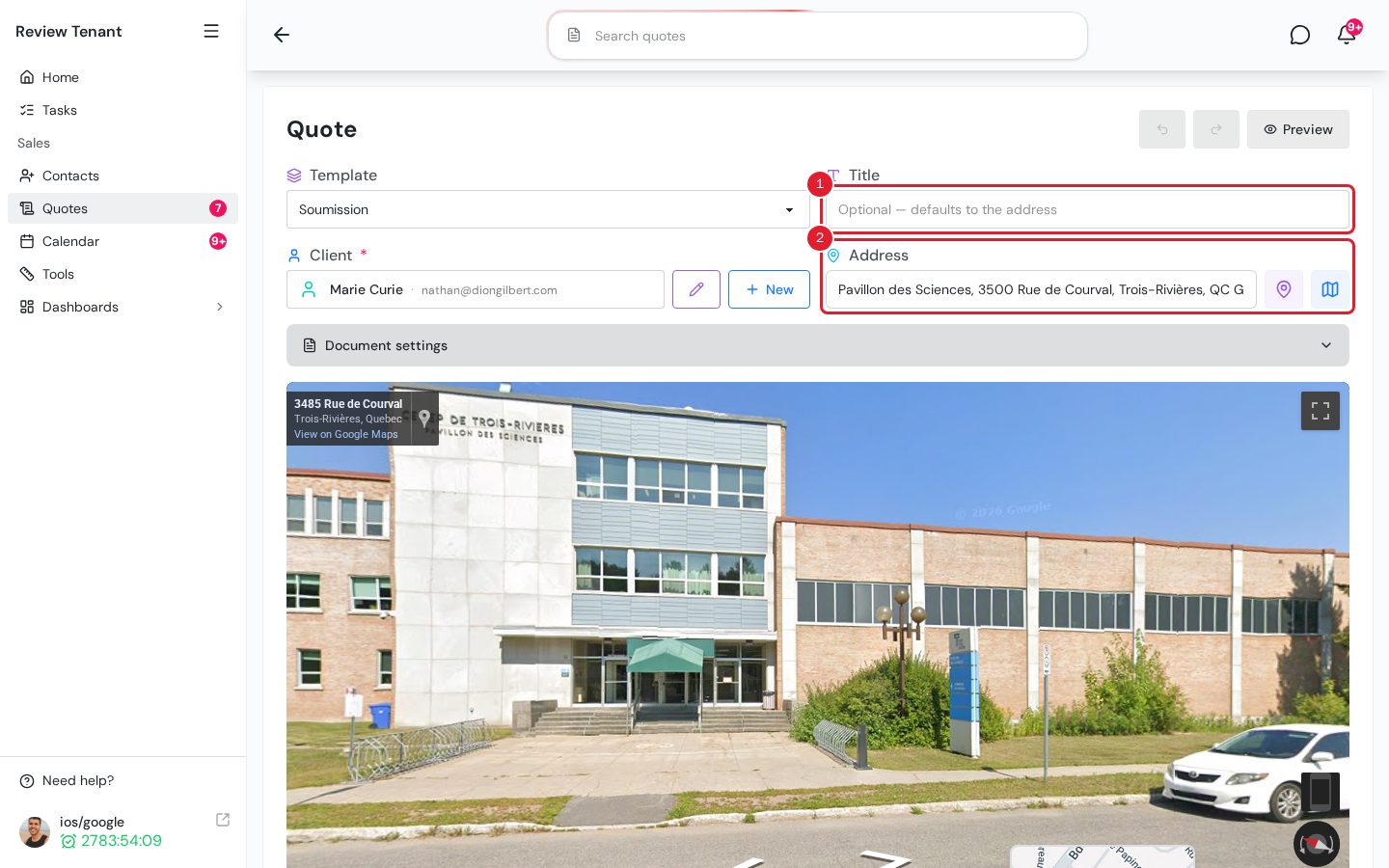
As soon as you choose the client, the quote is created as a draft. From then on, your changes are saved as you make them.
- Check the Address field. It uses the client's billing address. Change it if the work takes place somewhere else. The address is required.
- If you want, enter a project name in the Title field. If you leave it blank, PlanOps uses the address.
- In the Services section, click Add a line, then choose a service from the catalog. Repeat for each service. With the MeasureTool plan, this button adds a custom service line instead: give it a name.
- If needed, enter a Discount and add notes in External notes (additional notes on the quote) or Internal notes.
- To see the document the way your client will see it, click Preview at the top of the quote.
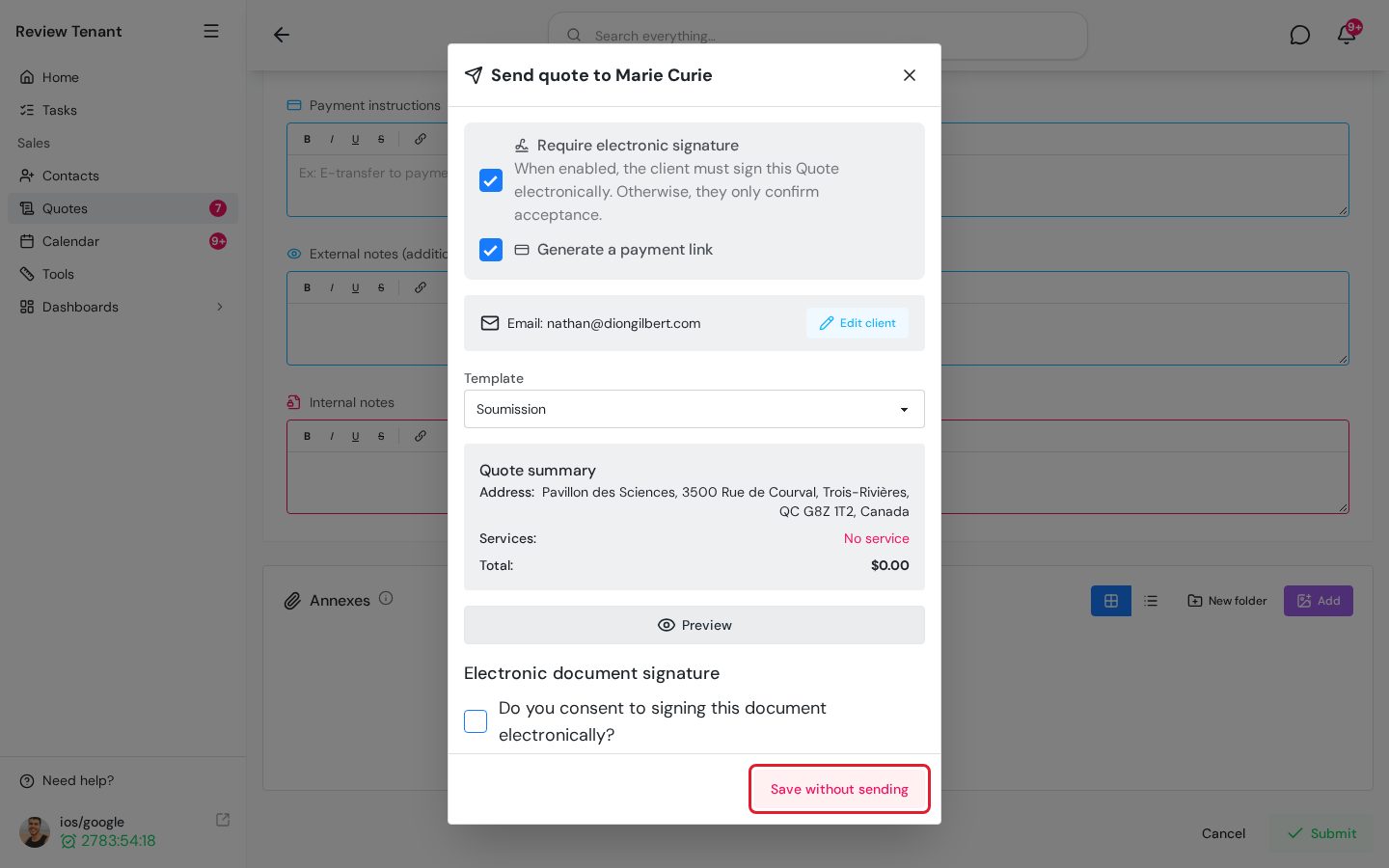
- At the bottom of the page, click Submit. The Send quote to window opens, followed by the client's name.
- At the bottom of this window, click Save without sending.
The message Quote created successfully. appears, then the quote's page opens. Nothing is sent to the client, and the quote's status changes to Created.
With the MeasureTool plan, the button at the bottom is called Create quote. It saves the quote without opening the send window.
Important: If the address is blank, the button shows Please enter an address and does nothing when you click it. You also get a warning if a custom service has no name or a required field is blank.
Tip: To stop and finish later, click Cancel at the bottom of the page, then click Keep draft. The quote stays in the list with the Draft status. Click Delete if you'd rather remove it.
What's next
When the quote is ready, open it and send it to your client. See Send a quote by email or text message.